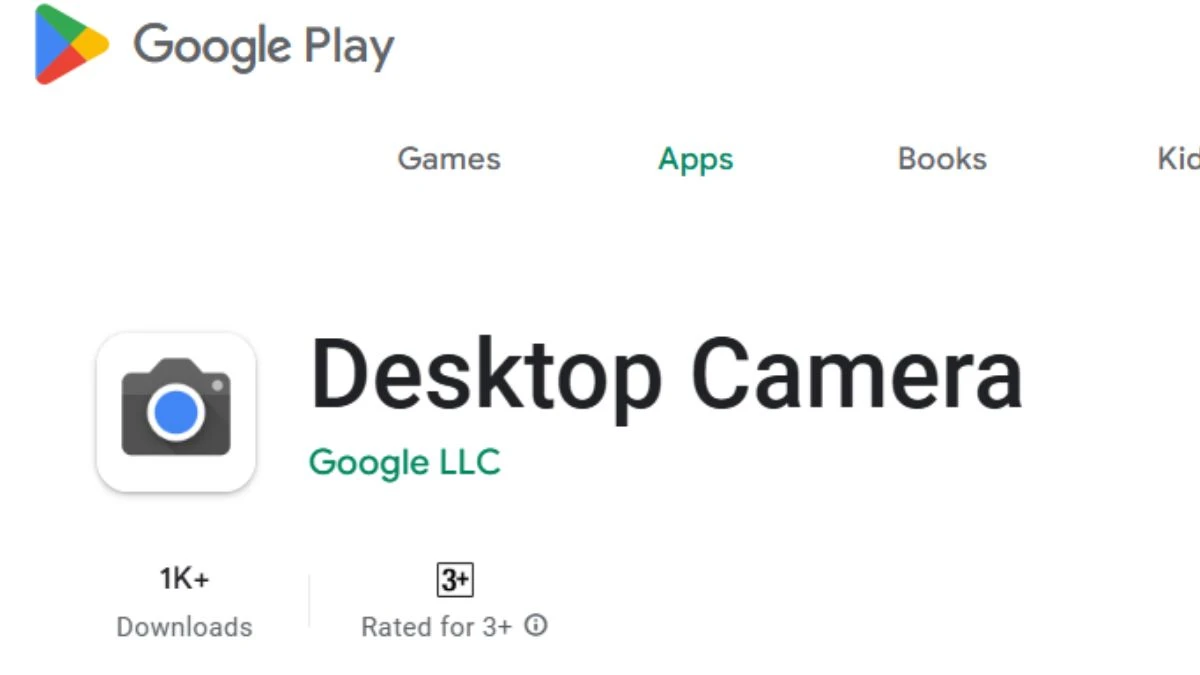

Google has been making some interesting moves lately with Android on bigger screens, and one of the latest signs is the quiet release of an app called Desktop Camera. @AssembleDebug shared on X highlighting Google Desktop Camera from Aluminium OS.
If you've been searching for a "Google desktop camera app," this is probably what popped up. It's a brand-new listing on the Google Play Store from Google itself, described simply as a "camera app for desktop."
It's generating buzz because it looks like an early piece of Google's push toward Android-powered PCs (think laptops or desktops running a more full-fledged Android experience, not just phones or tablets).
This ties into rumors and leaks about Aluminium OS, Google's in-development platform that's blending Android with desktop features, potentially replacing or evolving ChromeOS down the line.
As of early February 2026, the app is live but in a very basic form, with only around 1K+ downloads and what appears to be a rough, unfinished interface.
What Exactly Is the Google Desktop Camera App?
At its core, this is a straightforward camera utility built for large-screen devices. Google quietly pushed it to the Play Store recently (spotted around late January/early February 2026), and reports from sites like 9to5Google and Android Authority point to it being designed for upcoming Android-based PCs.
The app's description keeps it short: "Camera app for desktop. Never miss a moment with the Desktop Camera." Screenshots show a super-minimal setup no fancy bells and whistles yet. It has the familiar circular shutter button you know from Pixel phones, a toggle to switch between photo and video, and a basic settings tray.
The icon is identical to the standard Google Camera app on Pixels, which has people excited about a "Pixel-like" feel on desktops.
But don't get too hyped it's stripped down right now. No advanced stuff like Night Sight, Portrait mode, or AI enhancements that make Pixel cameras shine. It's more like a lightweight tool for quick snaps or recordings using a built-in laptop webcam or external camera.
How It Differs from the Regular Google Camera on Phones?
The regular Google Camera (GCam) on Pixel phones is packed with computational photography magic HDR+, astrophotography, Magic Editor, and more.
This Desktop Camera version? Not even close (yet). It's clearly adapted for bigger screens and desktop-style use, like sitting farther back with a keyboard and mouse in play. Think of it as a basic webcam app rather than a full photography powerhouse.
Availability and Supported Platforms
Right now, it's available on the Google Play Store, but it's tied to large-screen Android environments. It's not something you can just download and run on your Windows laptop or Mac it's aimed at devices running the upcoming Android desktop experience, likely Aluminium OS.
That OS is still in early development, with leaks showing a mix of Android and ChromeOS elements (like taskbars, split-screen, etc.), but no public release yet.
So, quick answers to common questions:
-
Is there a Google desktop camera app for Windows? No, not natively. This one's for Android-based desktop setups.
-
Can I install Google Desktop Camera on my current PC? Probably not effectively—it's built for specific hardware/OS combos that aren't widely available yet. Features and support could grow as Aluminium OS gets closer to launch.
Key Features in the Current Early Version
From the Play Store screenshots and reports:
-
Pixel-inspired but super simple UI — Clean layout optimized for larger displays, with easy access to basics via mouse/keyboard.
-
Core functions — Take photos, record videos, maybe a timer, and basic settings. That's about it for now.
-
Desktop-focused design — Google's wording emphasizes "desktop" use, so it's geared toward video calls, quick recordings, or anything where you'd use a laptop's camera in a seated setup.
Expect more polish and features (like better modes or integration) as development continues.
How to Use It?
Once Aluminium OS devices hit the market, the flow should be straightforward:
-
Open the app from your app drawer or search.
-
Grant camera (and mic, if recording video) permissions.
-
Toggle between photo and video mode.
-
Hit the big shutter button to capture.
It's expected to work seamlessly with built-in webcams or externals for things like Zoom calls, Google Meet, or even casual screen-side recordings.
Pro tip for better results: Good lighting makes a huge difference on any webcam face a window or use a ring light, keep your background tidy, and frame yourself naturally (not too close to the camera).
How It Compares to Other Google Camera Options
This isn't the same as Google's existing ways to get camera functionality on desktops:
-
Pixel phone as webcam — Since Android 14/15 updates, you can connect a Pixel phone via USB (or wirelessly in some cases) to use it as a high-quality webcam for your PC. That's phone hardware streaming to a computer—separate from this native desktop app.
-
Chromebook camera apps — Built-in camera tools on Chromebooks offer extras like document scanning, GIF capture, pan/tilt/zoom—stuff the Desktop Camera doesn't have yet.
-
Nest/Google Home — Those are for viewing security feeds, not acting as a PC webcam.
Disclaimer:
The information in this article is based on currently available reports, early previews, and public documentation about Google’s Desktop Camera app and related technologies. Actual features, availability, supported devices, and performance may change when Google releases new updates or makes official announcements. Readers should verify details on Google’s official channels or product pages before making any purchase or installation decisions.